What's New and How to Upgrade
Windows 11 represents Microsoft's most significant operating system update in years, featuring a completely redesigned interface, enhanced performance, and new productivity features. This guide covers everything you need to know about Windows 11, from system requirements to new features and upgrade tips.
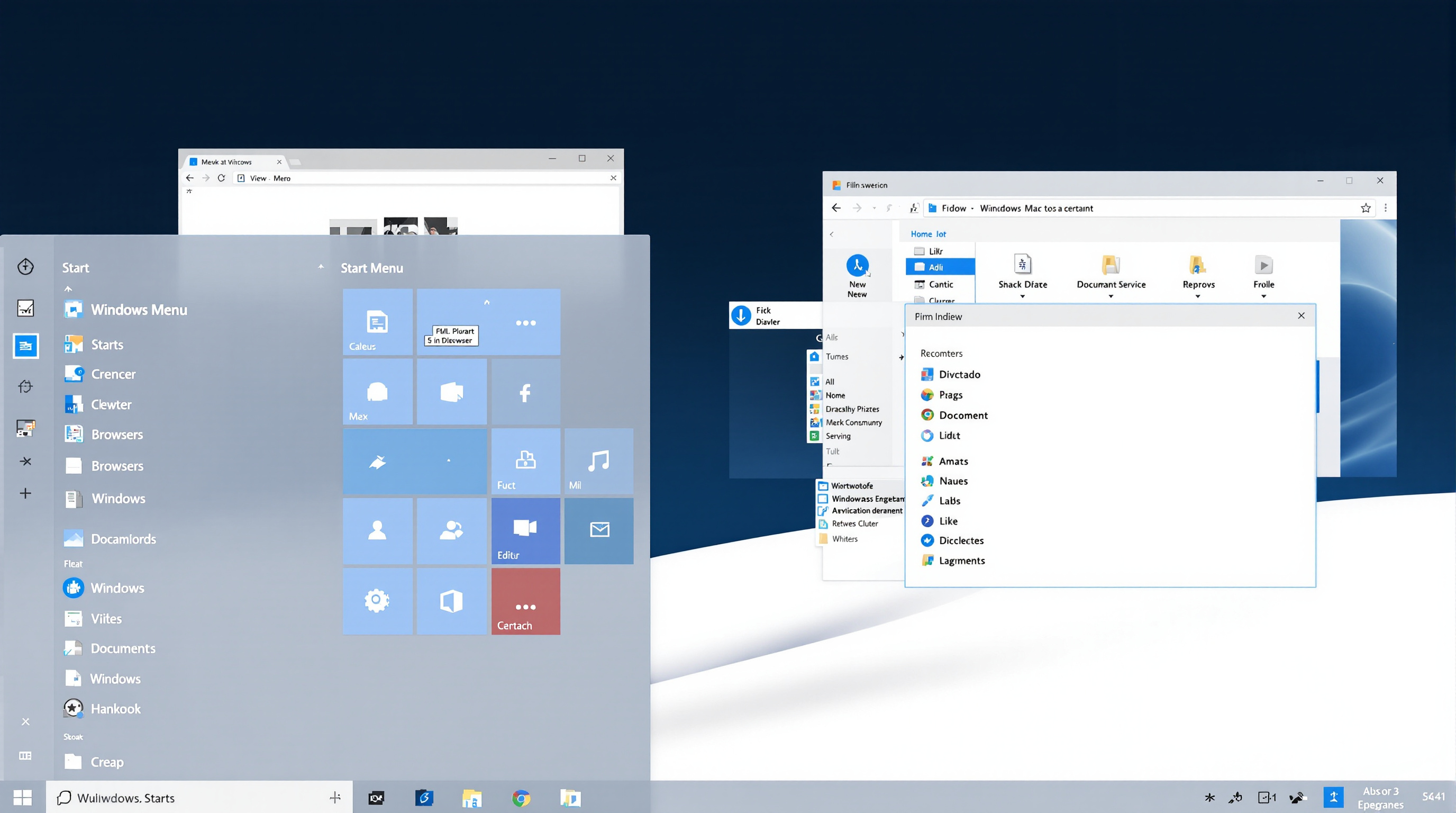
Windows 11 introduces several major changes that distinguish it from Windows 10:
The most noticeable change is the centered Start Menu and taskbar. Windows 11 features rounded corners, translucent backgrounds, and smooth animations throughout the interface, creating a modern, cohesive visual experience.
Hover over the maximize button in any window to access Snap Layouts - predefined window arrangements that make multitasking easier. Windows 11 remembers your Snap Groups, so minimizing one app in a group minimizes all related windows together.
At-a-glance information including weather, news, calendar events, and more. Access it with Windows + W.
Teams is now integrated directly into the taskbar for quick video calls and chats.
Support for Android apps through the Amazon Appstore brings mobile applications to your desktop.
Auto HDR, DirectStorage, and Xbox Game Pass integration for better graphics and faster load times.
Windows 11 has stricter hardware requirements than previous Windows versions:
| Component | Requirement |
|---|---|
| Processor | 1 GHz or faster with 2+ cores on compatible 64-bit processor or SoC |
| RAM | 4 GB minimum |
| Storage | 64 GB or larger storage device |
| System Firmware | UEFI, Secure Boot capable |
| TPM | Trusted Platform Module (TPM) version 2.0 |
| Graphics Card | DirectX 12 compatible with WDDM 2.0 driver |
| Display | HD (720p) display, 9" or greater, 8 bits per color channel |
For complete specifications and official information, visit Microsoft's official Windows 11 page.
Microsoft provides the PC Health Check app to verify your system's compatibility with Windows 11. Download it from Microsoft's website and run it to get an instant compatibility report.
If your PC doesn't meet requirements, the tool will identify which components need upgrading. The most common issues are TPM 2.0 and Secure Boot settings, which can often be resolved in your computer's BIOS/UEFI settings.
If your system meets requirements, you can upgrade for free:
Review the complete Windows 11 system requirements on Microsoft's website.
The decision to upgrade depends on your needs:
Hold Shift when right-clicking to access the full classic context menu.
Go to Settings > Personalization > Taskbar > Taskbar behaviors > Taskbar alignment and select "Left."
Press Windows + Z to see available Snap Layout options for the active window.
Click the network, sound, or battery icons to access Quick Settings for common toggles.
For troubleshooting Windows 11 issues, visit our Troubleshooting Guide. To optimize your Windows 11 performance, check our Performance Optimization section.