buildWindows Troubleshooting

Fix Common Problems Fast

Even the most stable Windows systems occasionally encounter problems. When issues arise, having a systematic troubleshooting approach saves time and prevents frustration. This comprehensive guide covers the most common Windows problems and their solutions, from boot failures to performance issues.

IT professional troubleshooting Windows computer issues

list The Systematic Troubleshooting Process

Before diving into specific problems, understand this fundamental troubleshooting methodology:

  1. looks_one Identify the Problem: What exactly isn't working? When did it start?
  2. looks_two Gather Information: Error messages, recent changes, system logs
  3. looks_3 Research: Search for error codes and similar issues
  4. looks_4 Form a Hypothesis: Based on symptoms, determine likely causes
  5. looks_5 Test Solutions: Try fixes starting with least invasive
  6. looks_6 Verify the Fix: Confirm the problem is actually resolved
  7. looks_7 Document: Note what worked for future reference
lightbulb
Pro Tip: This systematic approach prevents wasted effort and helps you learn from each troubleshooting session.

power_settings_new Common Windows Boot Problems

errorWindows Won't Boot

If Windows fails to start, try these solutions in order:

warningBlue Screen of Death (BSOD)

Blue screens indicate serious system errors. The error code (like "SYSTEM_THREAD_EXCEPTION_NOT_HANDLED") provides clues to the cause.

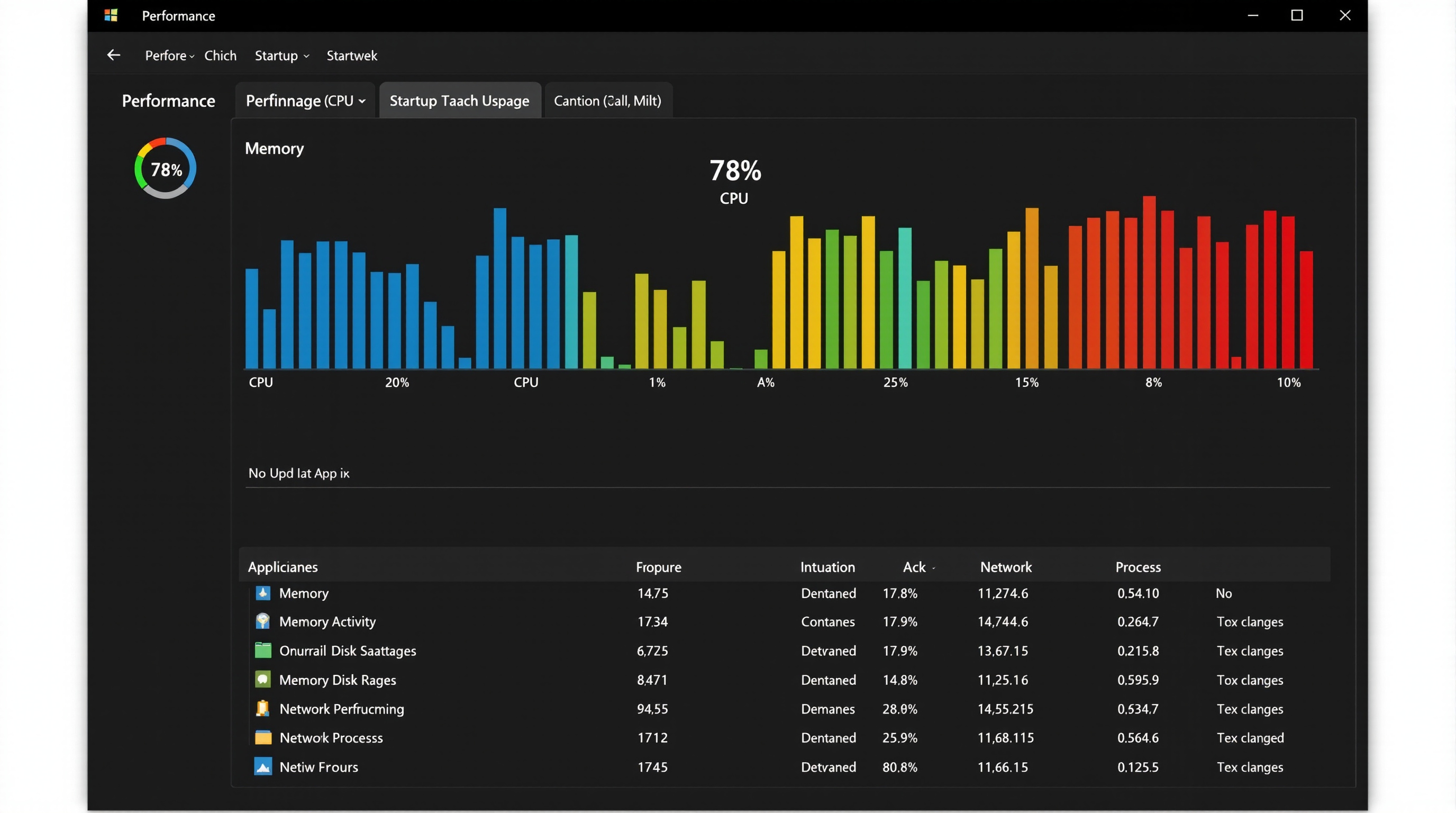
Windows Task Manager showing system performance metrics

Common BSOD Causes and Solutions:

storageDriver Issues

Update or rollback recently changed drivers, especially graphics and chipset drivers

memoryMemory Problems

Run Windows Memory Diagnostic (Windows + R, type "mdsched")

thermostatOverheating

Check CPU/GPU temperatures and clean dust from fans

folder_openCorrupted System Files

Run "sfc /scannow" in Command Prompt as administrator

info
Tool Tip: Use the free BlueScreenView utility to analyze BSOD dump files and identify problematic drivers.

For complete Safe Mode options and procedures, refer to Microsoft's Safe Mode documentation.

speed Performance Issues

hourglass_emptySlow Computer Performance

If your Windows system is running slowly, work through these optimization steps:

disc_fullHigh Disk Usage

If Task Manager shows 100% disk usage constantly:

devices Driver Problems

Driver issues cause many Windows problems. Device Manager (Win + X, select Device Manager) shows devices with driver problems marked with yellow exclamation marks.

buildFixing Driver Issues:

system_update

Right-click the device and select "Update driver"

cloud_download

Download the latest driver from the manufacturer's website

history

Use "Roll Back Driver" if a recent update caused problems

refresh

Completely uninstall and reinstall the driver if problems persist

info
Pro Tip: For graphics drivers, use DDU (Display Driver Uninstaller) for clean removal before installing new drivers.

wifi Network Connection Issues

When internet connectivity fails, try these steps:

  1. Run Windows Network Troubleshooter (Settings > Network & Internet > Status > Network troubleshooter)
  2. Restart your router and modem (unplug for 30 seconds)
  3. Update network adapter drivers in Device Manager
  4. Reset network settings: Settings > Network & Internet > Status > Network reset
  5. Flush DNS cache and reset TCP/IP: Run "ipconfig /flushdns" and "netsh int ip reset" in Command Prompt
  6. Disable IPv6 temporarily to test if it's causing conflicts

system_update_alt Windows Update Problems

If Windows Update fails or gets stuck:

restore When to Use System Restore

System Restore returns Windows to an earlier state without affecting personal files. Use it when:

install_desktop

Recent software installation caused problems

update

Windows Update broke something

error

System became unstable after driver update

Access System Restore: Control Panel > Recovery > Open System Restore. Choose a restore point from before problems began.

For more advanced troubleshooting, see our Registry Guide or Safe Mode Guide. If hardware issues persist, consult our Hardware Troubleshooting section.