desktop_windowsWindows 10 Tips & Tricks

Master Your Windows Experience

Windows 10 has become the most widely-used Windows version, with billions of users worldwide. Whether you're new to Windows 10 or a longtime user, there are always new tricks to discover that can enhance your productivity and make your computing experience more enjoyable.
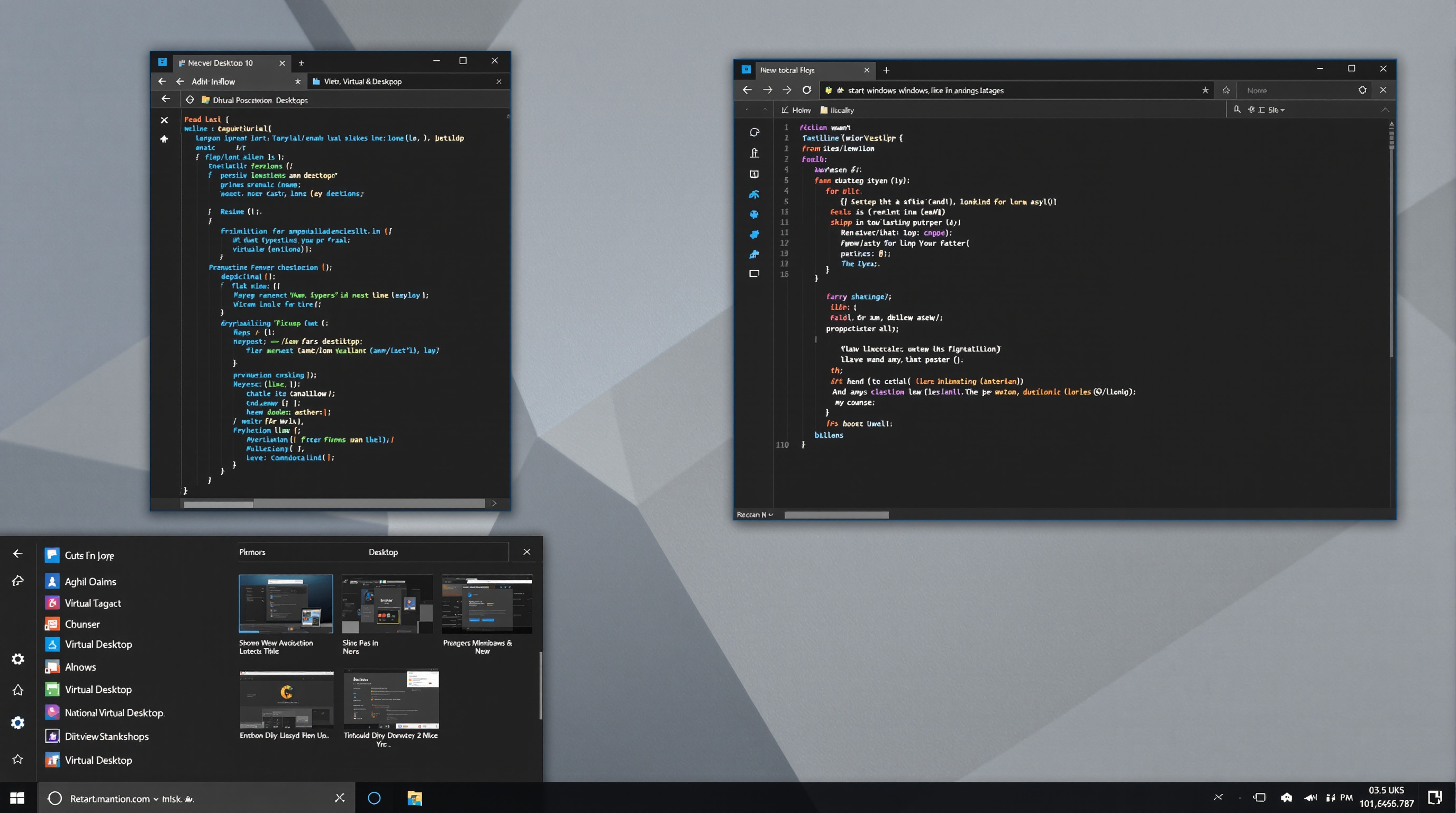
Windows 10 virtual desktops and multitasking interface

keyboard Essential Keyboard Shortcuts

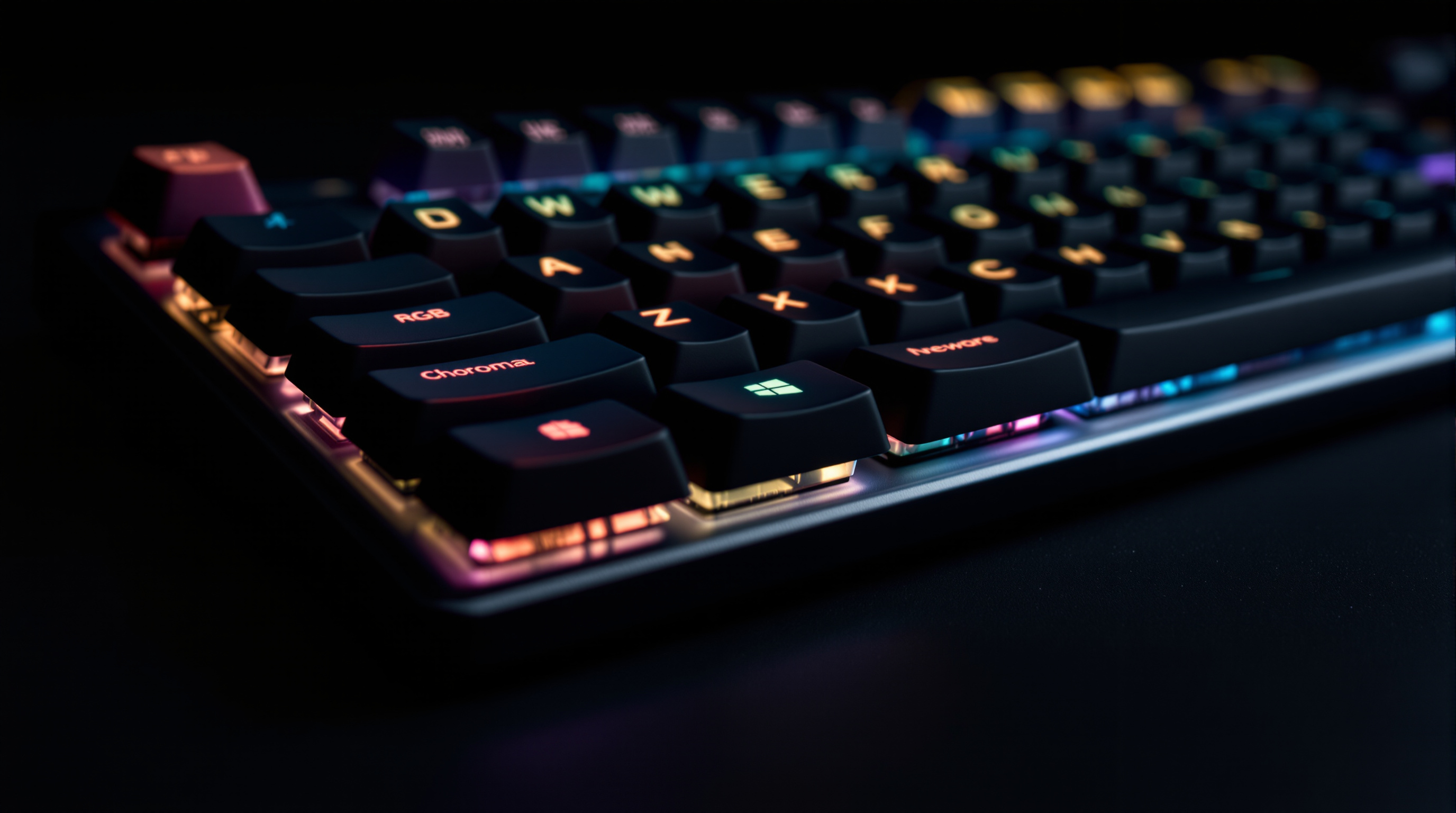
Mastering keyboard shortcuts can dramatically speed up your Windows workflow. Here are the must-know combinations every Windows 10 user should memorize:

  • Windows + D: Show desktop (minimize all windows instantly)
  • Windows + E: Open File Explorer
  • Windows + I: Open Settings
  • Windows + L: Lock your computer
  • Windows + Tab: Open Task View (see all open windows and virtual desktops)
  • Windows + Shift + S: Take a screenshot with Snip & Sketch
  • Windows + V: Open clipboard history
  • Alt + Tab: Switch between open applications
  • Windows + Arrow Keys: Snap windows to different screen positions
  • Ctrl + Shift + Esc: Open Task Manager directly
Keyboard showing Windows key for shortcuts

For a complete list of Windows 10 keyboard shortcuts, see Microsoft's official keyboard shortcuts guide.

view_carousel Virtual Desktops for Better Organization

One of Windows 10's most powerful but underutilized features is Virtual Desktops. This allows you to create multiple desktop workspaces for different tasks, helping you stay organized and focused.

info How to use Virtual Desktops:

lightbulb
Pro Tip: Try organizing your desktops by task type - for example, one for work applications, another for communication tools, and a third for personal browsing.

dashboard Customize Your Start Menu

The Windows 10 Start Menu is highly customizable. Right-click on any tile to resize it, unpin it, or turn off live tiles. You can create groups of related applications by dragging tiles together, then naming the group for easy access.

To streamline your Start Menu, remove apps you don't use and pin your most-used programs. A well-organized Start Menu can save you dozens of clicks every day.

do_not_disturb_on Focus Assist for Distraction-Free Work

Focus Assist (formerly Quiet Hours) helps you work without interruptions by controlling notifications. Access it from the Action Center or Settings > System > Focus Assist.

You can set automatic rules to enable Focus Assist during specific hours, when you're presenting, or when you're gaming. Configure priority notifications so important alerts still come through while others are silenced.

folder_open File Explorer Power Tips

File Explorer has several hidden capabilities that power users love:

starQuick Access

Pin frequently-used folders for instant access

searchSearch Filters

Use "kind:" filters (kind:document, kind:music) to narrow searches

check_boxFile Checkboxes

Enable item checkboxes in View settings for easier multi-file selection

dark_modeDark Mode

Windows 10 supports dark mode - enable it in Settings > Personalization

search Windows Search Tips

The Windows Search box (Windows + S) is incredibly powerful. Beyond searching for files and apps, you can:

admin_panel_settings God Mode: Ultimate Control Panel

Windows 10's "God Mode" provides access to all system settings in one place. To enable it:

  1. Create a new folder on your desktop
  2. Rename it to: GodMode.{ED7BA470-8E54-465E-825C-99712043E01C}
  3. The folder icon will change, and opening it reveals all Windows settings

This gives you centralized access to hundreds of system settings and tools, perfect for power users and troubleshooters.

tips_and_updates Additional Tips

content_pasteClipboard History

Windows 10 now includes clipboard history. Enable it in Settings > System > Clipboard, then use Windows + V to access your clipboard history and pin frequently-used items.

nightlightNight Light for Better Sleep

The Night Light feature reduces blue light emissions in the evening, which can help improve sleep quality. Configure it in Settings > System > Display to automatically activate at sunset.

securityWindows Sandbox for Safe Testing

Windows 10 Pro and Enterprise include Windows Sandbox - a temporary, isolated environment for testing software safely. Any changes made in the sandbox are discarded when you close it, making it perfect for trying potentially risky programs.

For more advanced Windows customization, check our Registry Guide or explore our Troubleshooting section if you encounter issues.